
How to Extend the Lifespan of Your SSD in 2025

Solid-state drives (SSDs) have revolutionized storage technology, offering faster speeds, better durability, and improved energy efficiency over traditional hard drives. Whether you’re using an external SSD drive for backups, an internal SSD for everyday computing, or a solid state hard drive for high-performance tasks, maximizing your SSD’s lifespan is essential. While SSDs are more reliable than traditional HDDs, they still have a limited number of write cycles, which means their longevity depends on how they are used and maintained. In this guide, we’ll explore the best practices to extend the lifespan of your SSD and ensure long-term performance.
Understanding SSD Lifespan and Wear
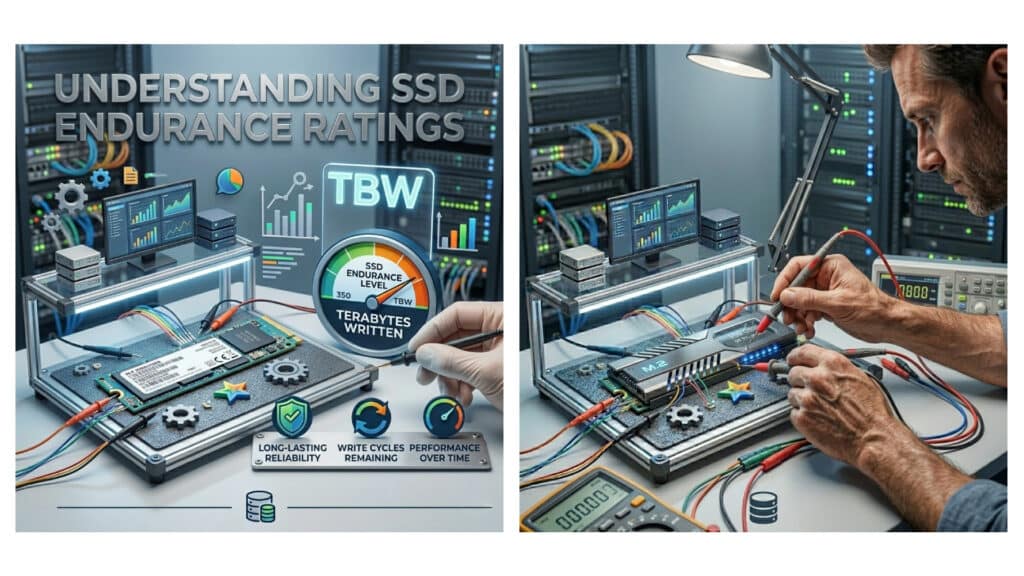
Unlike traditional hard drives, SSDs use NAND flash memory to store data. While this makes them faster and more durable, each memory cell in an SSD has a finite number of program/erase cycles before it wears out. The lifespan of an SSD is typically measured using Terabytes Written (TBW) and Drive Writes Per Day (DWPD), which indicate how much data can be written over time.
Different types of SSDs have varying endurance levels, depending on the NAND technology used:
- SLC (Single-Level Cell) – Highest endurance, typically used in enterprise SSDs.
- MLC (Multi-Level Cell) – Balanced performance and lifespan.
- TLC (Triple-Level Cell) – Common in consumer SSDs, moderate endurance.
- QLC (Quad-Level Cell) – Lower endurance but higher storage capacity at a lower cost.
While internal SSDs and external SSD drives have different use cases, they both require proper care to maximize their lifespan.
Best Practices to Extend SSD Lifespan
1. Enable TRIM for Better Performance
TRIM is a crucial feature that helps SSDs manage unused data blocks efficiently. When files are deleted, TRIM ensures that the SSD does not retain unnecessary data, reducing wear on memory cells and improving performance.
Most modern operating systems, including Windows and macOS, enable TRIM by default for SSDs. However, it’s a good idea to check your settings to confirm that it’s activated. Enabling TRIM prevents performance degradation and reduces unnecessary writes to your solid state hard drive over time.
2. Avoid Filling Your SSD to Maximum Capacity
SSDs need free space to perform background operations like wear leveling and garbage collection. Overfilling an SSD can slow down performance and reduce its lifespan.
✔ Keep at least 10-20% of your SSD free to maintain efficiency.
✔ If using an internal SSD for an operating system, consider a larger capacity to prevent reaching storage limits.
Why it matters: Leaving free space helps the SSD manage data efficiently, reducing wear and improving longevity.
3. Reduce Unnecessary Writes to the SSD
Since SSDs have a limited number of write cycles, reducing excessive write operations can extend their lifespan.
✔ Avoid frequent file rewriting: Move frequently modified files to another drive.
✔ Disable unnecessary logging: System logs and temporary files can cause excessive writes.
✔ Use an HDD for large files: If you work with large video files, use an HDD or an external SSD drive as secondary storage.
Why it matters: Minimizing unnecessary writes helps preserve the NAND memory cells in your solid state hard drive.
4. Enable AHCI Mode in BIOS
AHCI (Advanced Host Controller Interface) mode optimizes SSD performance and enables features like Native Command Queuing (NCQ) and TRIM.
To check if AHCI is enabled, open your system’s BIOS settings during startup and look for the SATA mode configuration. If it’s set to IDE, switching to AHCI can improve your SSD’s performance. However, changing this setting after installing an OS can cause boot issues, so back up your data first.
Why it matters: AHCI enhances SSD performance and lifespan by reducing unnecessary read/write cycles.
5. Disable Disk Defragmentation for SSDs
Unlike HDDs, SSDs do not need defragmentation. In fact, defragging an SSD can actually shorten its lifespan by performing unnecessary write operations.
✔ Windows 10 and 11 automatically disable defragmentation for SSDs.
✔ If unsure, check by searching Defragment and Optimize Drives in Windows and ensuring your SSD is not scheduled for defragging.
Why it matters: SSDs do not suffer from fragmentation like HDDs, so defragmentation only adds unnecessary wear.
6. Move Temporary Files and Page Files to Another Drive
Operating systems create temporary files and page files that are frequently written and erased. Moving these files to another drive reduces write cycles on your internal SSD.
✔ Move page files to an HDD or secondary external SSD drive.
✔ On Windows, adjust virtual memory settings in Advanced System Settings under Performance.
Why it matters: Reducing frequent small writes extends SSD longevity.
7. Use High-Quality Power Supplies to Prevent Data Corruption
Sudden power loss can corrupt SSD data and shorten its lifespan.
✔ Use a reliable power supply unit (PSU) for desktops.
✔ Enable Write Caching in Windows under Device Manager > Disk Drives > Properties.
✔ Consider a UPS (Uninterruptible Power Supply) for additional protection.
Why it matters: Stable power prevents sudden shutdowns that can damage an SSD’s memory cells.
8. Regularly Update SSD Firmware
SSD manufacturers release firmware updates to improve performance, fix bugs, and enhance lifespan.
✔ Visit the manufacturer’s website for firmware updates.
✔ Use software tools like Samsung Magician, Crucial Storage Executive, or Western Digital Dashboard to manage firmware.
Why it matters: Updated firmware ensures your solid state hard drive operates efficiently.
Do External SSDs Last Longer Than Internal SSDs?
While external SSD drives and internal SSDs use the same NAND flash technology, external SSDs tend to experience less frequent writes since they are often used for backups or file transfers rather than continuous operation.
✔ External SSDs are better for long-term storage because they endure fewer write cycles.
✔ Internal SSDs in daily-use systems may wear out faster due to frequent read/write operations.
If longevity is a concern, using an external SSD drive for infrequent storage tasks and an internal SSD for active workloads is an ideal setup.
Conclusion
Extending the lifespan of your solid state hard drive requires a combination of proper maintenance, reducing unnecessary writes, and optimizing system settings. Whether you’re using an external SSD drive for backup or an internal SSD for daily computing, following best practices like enabling TRIM, avoiding excessive writes, and keeping firmware updated will help maximize its durability.
SSDs are a game-changer in data storage, and by taking the right precautions, you can ensure they provide years of reliable performance. If you’re considering an upgrade, investing in a high-quality SSD with good endurance ratings is the best way to future-proof your system.