
SSD Care: A 7-Step Guide to Optimal Usage and Maintenance

Introduction
The Solid State Drive (SSD) has indisputably become the cornerstone of modern storage architecture, far surpassing traditional Hard Disk Drives (HDDs) in speed, durability, and energy efficiency. As we move further into 2025, industry data indicates that global SSD market revenue is projected to exceed $55 billion by 2026, driven by the insatiable demand for high-speed data processing in enterprise servers, AI workstations, and consumer electronics. For wholesalers and systems integrators, understanding the nuances of SSD hard drive longevity is not merely a technical requirement but a business imperative.
Despite their robustness, SSDs are not impervious to wear and failure. To ensure a high return on investment and customer satisfaction, it is critical to implement a strategic maintenance regimen. This guide delves into the “why,” “how,” and “which” aspects of SSD care, offering actionable insights on installation, performance optimization, and troubleshooting. By adhering to these best practices, businesses can extend the lifespan of their storage solutions and maintain the high reliability expected in professional environments.
1. Why Proper Installation and Usage Determine SSD Longevity
1.1. Why Correct Installation Methods Are Critical
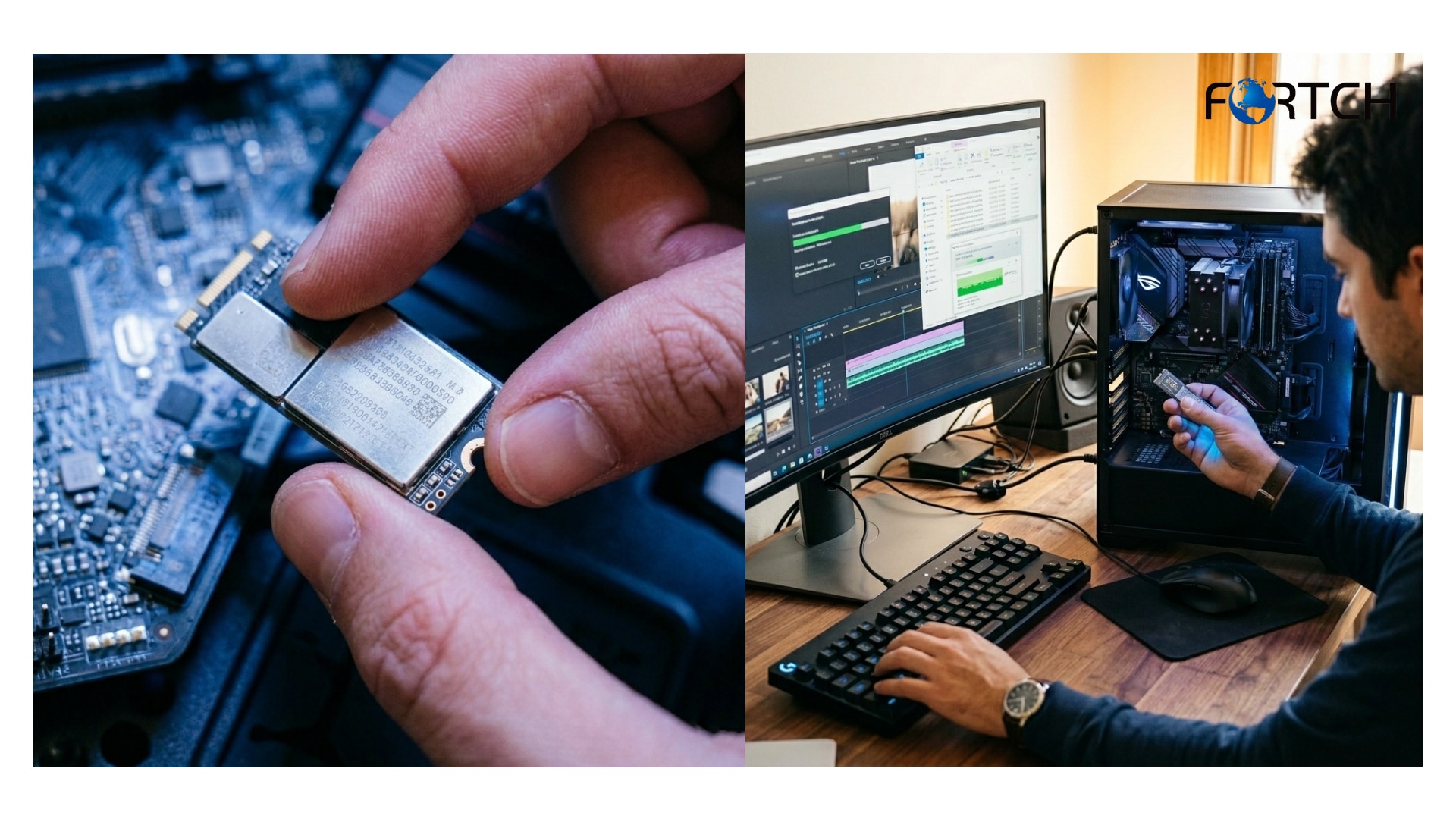
The foundation of a long-lasting Solid State Drive lies in its initial installation. improper handling during the setup phase is a leading cause of premature failure, often voiding warranties in wholesale batches. To mitigate this, it is essential to prioritize electrostatic discharge (ESD) protection. Using an anti-static wristband or grounding oneself prevents invisible static charges from damaging the sensitive components of the SSD hard drive.
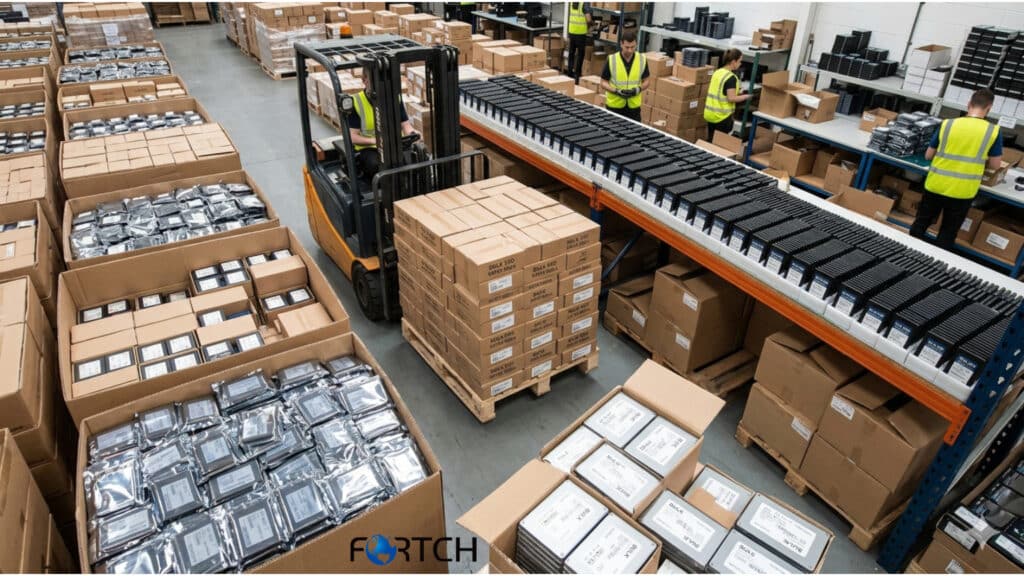
Furthermore, physical mounting plays a pivotal role. The SSD should be secured in a location that allows for optimal airflow. In high-performance environments where drives are stacked closely together, heat dissipation becomes a shared challenge. By ensuring that the SSD is not cramped and that air circulates freely around it, system integrators can prevent the thermal throttling that degrades drive performance over time. Additionally, verifying a stable power supply is crucial; voltage fluctuations can lead to immediate data corruption or gradual physical damage to the Solid State Drive.
1.2. Why Ideal Operating Conditions Impact Performance
SSDs operate within specific thermal envelopes, and exceeding these limits is a primary driver of reduced lifespan. While consumer SSD hard drives typically tolerate a range of 0°C to 70°C, enterprise-grade drives used in server racks often run hotter due to sustained workloads. Recent 2025 studies show that operating an SSD consistently at the upper limits of its thermal tolerance can reduce its data retention capabilities by over 50%.
Maintaining an ideal environment involves more than just ambient temperature control; it requires active management of humidity and dust. Dust accumulation acts as an insulator, trapping heat inside the Solid State Drive. For wholesalers advising clients on data center builds, recommending climate-controlled environments or advanced cooling solutions is essential. When an SSD operates in a cool, clean environment, its controller can manage data allocation more efficiently, directly translating to sustained speed and a longer operational life.
2. How to Optimize SSD Care for Peak Performance
2.1. How Clearing Unnecessary Files Preserves Speed
A common misconception is that an SSD, unlike an HDD, does not require file management. In reality, the performance of a Solid State Drive is intrinsically linked to its available free space. When an SSD hard drive approaches 90% to 95% capacity, the NAND flash cells struggle to find clean blocks for new data writes. This phenomenon forces the drive to perform additional “program/erase” cycles, significantly slowing down write speeds and increasing wear.
To counteract this, regular maintenance routines should include the archiving of old data to external storage and the uninstallation of unused applications. For B2B clients managing large inventories of files, setting automated scripts to clear temporary files and cache data is a highly effective strategy. Keeping at least 15-20% of the SSD capacity free ensures the drive’s garbage collection mechanisms operate efficiently, thereby maintaining the high read/write speeds that end-users expect.
2.2. How Enabling the TRIM Command Enhances SSD Care and Efficiency
The TRIM command is a vital component of modern SSD maintenance, acting as a bridge between the operating system and the storage drive. Without TRIM, the operating system does not know which data blocks are no longer in use, leading the Solid State Drive to perform time-consuming cleanup operations right before writing new data. This “write amplification” slows down the system and accelerates the wear on the memory cells.
Enabling TRIM allows the OS to proactively inform the SSD hard drive which blocks can be wiped. For maximum performance, this feature should be active by default. Most modern SSDs support TRIM, and it can be verified via a simple command prompt or through the proprietary management software provided by the manufacturer. For custom integration projects, ensuring that TRIM is enabled in the firmware image is a critical step in guaranteeing that the Solid State Drive maintains its throughput over years of usage.
3. Which Common Issues to Prevent and How to Troubleshoot
3.1. Which Power Failures Cause the Most Damage
Power instability is the nemesis of reliable SSD operation. While modern Solid State Drives have sophisticated power-loss protection algorithms, sudden power outages or improper shutdowns can still occur during critical write operations. This can result in metadata corruption, making files unreadable, or in severe cases, “bricking” the SSD hard drive. In a wholesale context, where drives may be used in regions with unstable power grids, this is a significant risk factor.
The most effective prevention method is the use of an Uninterruptible Power Supply (UPS). A UPS provides a buffer that allows the system to save data and shut down safely during a power cut. Furthermore, enabling “write caching” safely in the OS—only when a battery backup is present—can boost performance while protecting data integrity. Understanding which scenarios pose the highest risk allows system builders to recommend the right power protection hardware to safeguard their SSD investments.
3.2. Which SSD Troubleshooting Tools Provide the Best Insights
Proactive monitoring is superior to reactive repair. To prevent unexpected downtime, utilizing advanced diagnostic tools is recommended. Most SSD manufacturers offer branded software (such as Samsung Magician, WD Dashboard, or Kingston SSD Manager) that provides real-time health data. These tools are indispensable for checking the Solid State Drive’s S.M.A.R.T. (Self-Monitoring, Analysis, and Reporting Technology) status.
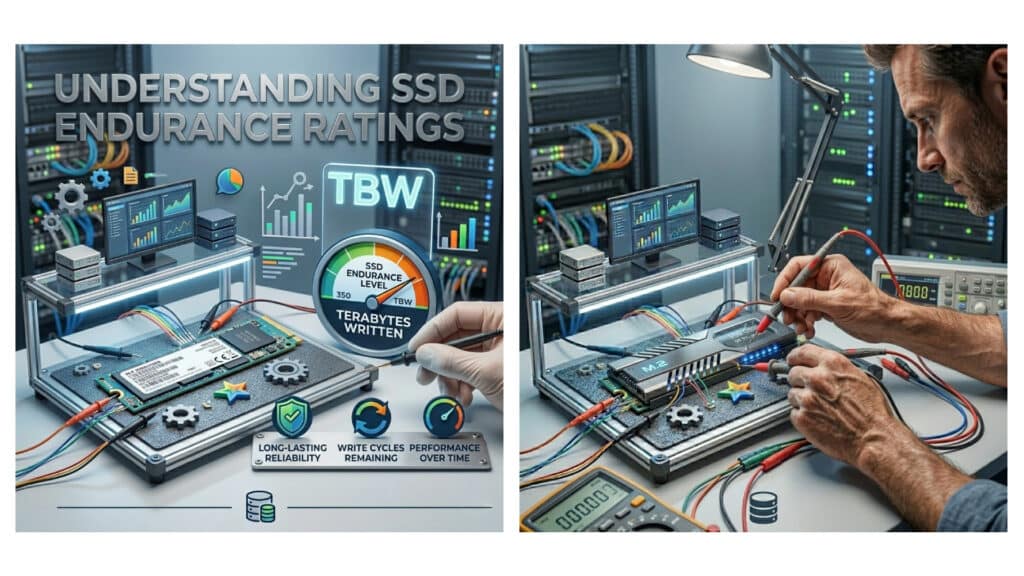
For a more generalized approach, third-party applications like CrystalDiskInfo are highly regarded in the industry for their ability to read detailed sensor data across different brands. Key metrics to watch include “Total Bytes Written” (TBW), “Media and Data Integrity Errors,” and “Available Spare.” By regularly consulting these tools, IT administrators can identify a failing SSD hard drive before it catastrophically fails, allowing for timely warranty claims or data migration—critical processes for maintaining business continuity.
4. Why Data Backup Strategies Are Vital for SSD Reliability
4.1. Why Regular Data Backups Are Non-Negotiable
Even with the most rigorous SSD care, physical failure or logical errors can still occur. Unlike HDDs, which often emit audible warning sounds before failing, a Solid State Drive can fail suddenly without warning. Therefore, a robust backup strategy is the final layer of defense. The 3-2-1 backup rule—three copies of data, two different media types, and one offsite copy—remains the gold standard for data security.
For businesses dealing with sensitive client data, relying solely on the SSD is a risk not worth taking. Cloud storage solutions offer scalability and offsite protection, while local external SSD hard drives provide fast restore times. Automating these backups ensures that human error does not result in data loss. In the event of a drive malfunction, having a recent backup minimizes downtime and preserves data integrity, reinforcing trust with clients who depend on reliable storage solutions.
4.2. Which Data Recovery Tools Are Most Effective
In the unfortunate event of data loss, selecting the right recovery tool is paramount. Software solutions like EaseUS Data Recovery Wizard and Disk Drill are popular for recovering deleted files from Solid State Drives. However, success rates vary heavily based on whether the drive is in a logical failure state (filesystem error) or a physical failure state (hardware damage).
It is crucial to note that if an SSD is physically damaged or making no connection, running software recovery tools can cause further harm by attempting to write to the failing drive. In such cases, professional data recovery services are the only viable option. These services use cleanroom environments to physically repair the SSD hard drive and extract data. For wholesale buyers, offering guidance on reputable recovery partners can be a valuable value-added service, distinguishing your brand from competitors who only focus on hardware sales.
Conclusion
Maximizing the performance and lifespan of an SSD requires a holistic approach that combines proper installation, environmental management, and proactive software maintenance. As the market for Solid State Drives continues to expand through 2026, the ability to keep these drives running at peak efficiency will remain a key differentiator for businesses and system integrators.
By implementing the TRIM command, managing storage capacity, and rigorously monitoring drive health, users can significantly extend the utility of their SSD hard drive. Furthermore, maintaining a disciplined backup strategy ensures that data remains secure regardless of hardware status. For wholesale and B2B clients, investing in these best practices is not just about maintenance; it is about delivering reliability, performance, and long-term value to the end-user.
Frequently Asked Questions
1. What is the main difference between an SSD and a traditional HDD?
The primary difference lies in the technology used to store data. A Solid State Drive (SSD) uses flash memory chips to retrieve data instantly, resulting in significantly faster boot times and file transfers. In contrast, traditional Hard Disk Drives (HDDs) rely on spinning magnetic platters and mechanical arms, making them slower and more susceptible to physical damage from drops or vibrations.
2. How long does a typical SSD hard drive last?
The lifespan of an SSD hard drive is measured in Terabytes Written (TBW). While consumer-grade drives often last between 5 to 7 years under normal use, enterprise or high-end Solid State Drives can last even longer due to higher write endurance. Proper maintenance, such as keeping the drive cool and enabling TRIM, is essential to reaching the maximum lifespan of the device.
3. Why is enabling the TRIM command important for my SSD?
Enabling the TRIM command is crucial for maintaining the write speed of your Solid State Drive. It allows the operating system to communicate to the SSD which data blocks are no longer in use. Without TRIM, the drive must perform extensive cleanup operations before writing new data, which slows down performance and increases wear on the memory cells over time.
4. Can I fill my SSD to its maximum capacity without issues?
To maintain optimal performance, it is highly recommended not to fill your SSD to its full capacity. When a Solid State Drive becomes too full, it struggles to find empty blocks for new data, leading to significant speed drops. Best practices suggest keeping at least 15% to 20% of the drive’s total space free to allow the garbage collection mechanisms to work efficiently.
5. How does temperature affect the performance of an SSD hard drive?
Temperature is a critical factor in SSD performance and longevity. Excessive heat can cause the Solid State Drive to throttle (reduce speed) to prevent damage and can accelerate the wear on internal components. Ensuring proper airflow and ventilation in your computer case or server rack is vital to keep the drive operating within its safe temperature range.
6. Is it necessary to defragment an SSD?
No, you should never defragment an SSD. Defragmentation is a process designed for HDDs to organize data sequentially on spinning platters. Since a Solid State Drive accesses data randomly and has no moving parts, defragmentation provides no benefit and actually harms the SSD by using up its write cycles, shortening its lifespan.
7. What should I do if my SSD hard drive fails?
If your SSD hard drive fails, stop using it immediately to prevent further data loss. If the failure is logical (e.g., deleted files), you can try reputable data recovery software. However, if the drive is physically unresponsive or making no connection, you should contact a professional data recovery service rather than attempting to fix it yourself, as DIY repairs can cause permanent data loss.
8. Are Solid State Drives compatible with older computer systems?
Yes, Solid State Drives are generally backward compatible with older systems, provided they have the correct interface. Most modern SSDs use the SATA interface, which is present in almost all older computers. However, for very old systems, ensure the BIOS supports the drive, or you may need a 2.5-inch to 3.5-inch mounting bracket to physically fit the SSD into a legacy drive bay.
9. Can I use an SSD for external storage?
Absolutely. Using an SSD for external storage is an excellent way to get high-speed access to your data on the go. External Solid State Drives are much faster and more durable than portable HDDs because they have no moving parts. This makes them ideal for photographers, videographers, and professionals who need to transfer large files quickly and safely.
10. Why is data backup still important if I have a reliable SSD?
Even the most reliable SSD is not immune to failure, theft, or accidental data deletion. Solid State Drives can fail suddenly without the audible warning signs often heard in failing mechanical drives. Therefore, maintaining a regular backup routine—using cloud storage or an external drive—is the only way to guarantee 100% data security regardless of the health of your hardware.